
Everything Searchly does to keep your loved ones safe.
A real, modern browser with the clutter and the danger turned down. Here's how every part works — in plain English.
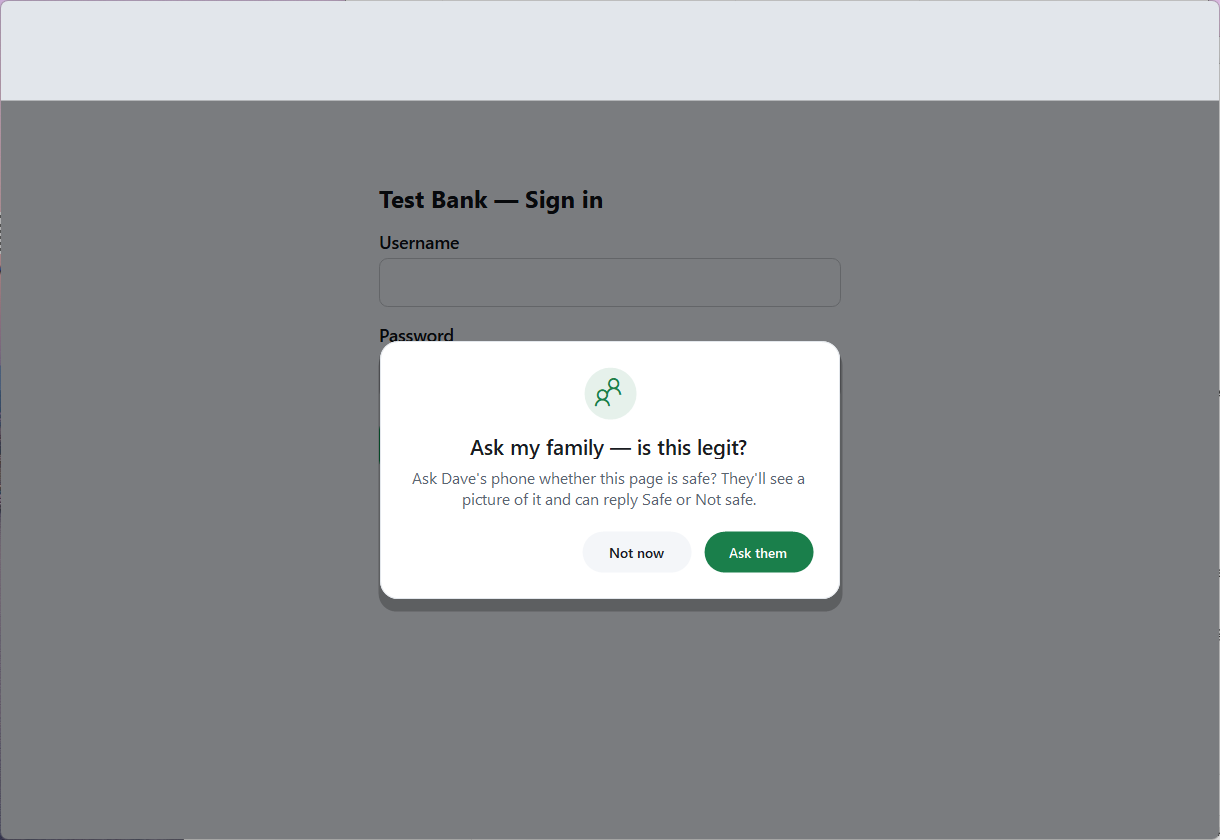
"Ask my family"
The heart of Searchly. When a page looks suspicious — or before an important login — your loved one can get a second opinion from you in seconds, without ever having to explain what's on the screen.
- One clear green button, always in reach at the top of the window.
- The family member gets a picture of the page on their phone by Telegram or email.
- They tap Safe or Not safe — nothing to install on their side.
- While waiting, the page greys out with a calm overlay so no one is rushed.
- A 'not safe' reply closes the page automatically to keep them protected.
- Set up once with a step-by-step pairing wizard — no servers or settings to understand.
Scam & phishing protection
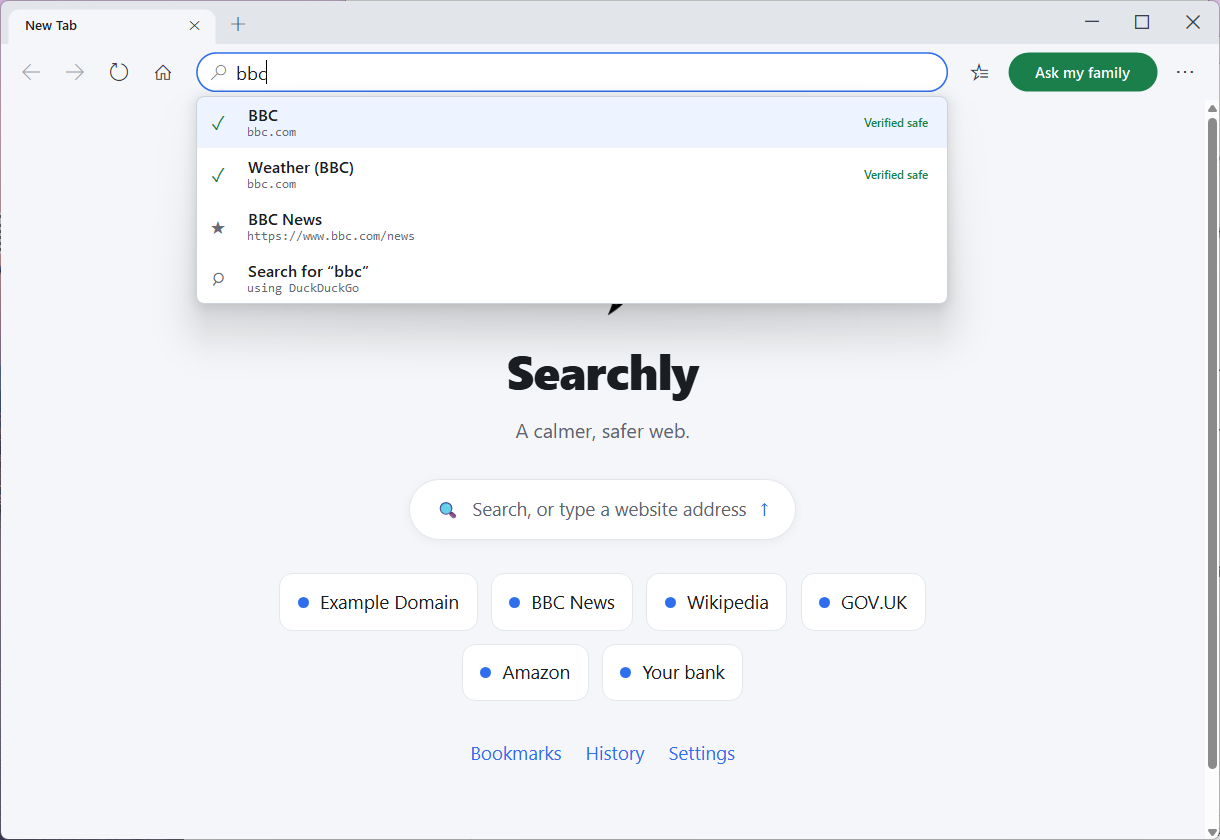
Searchly watches for danger the way a careful friend would — and speaks in plain, calm language when it spots something.
- Warns about known scam and phishing sites using continuously updated blocklists.
- Detects scam-looking pages by how they read — catching fake virus alerts, gift-card and prize scams on brand-new sites too.
- Green "This really is…" badges confirm the genuine bank, government or major site — not a lookalike.
- The smart address bar surfaces the real site first and quietly flags typo and lookalike domains.
- Plain-English warnings on soft cards — never harsh, confusing error screens.
Quick safety check before every password
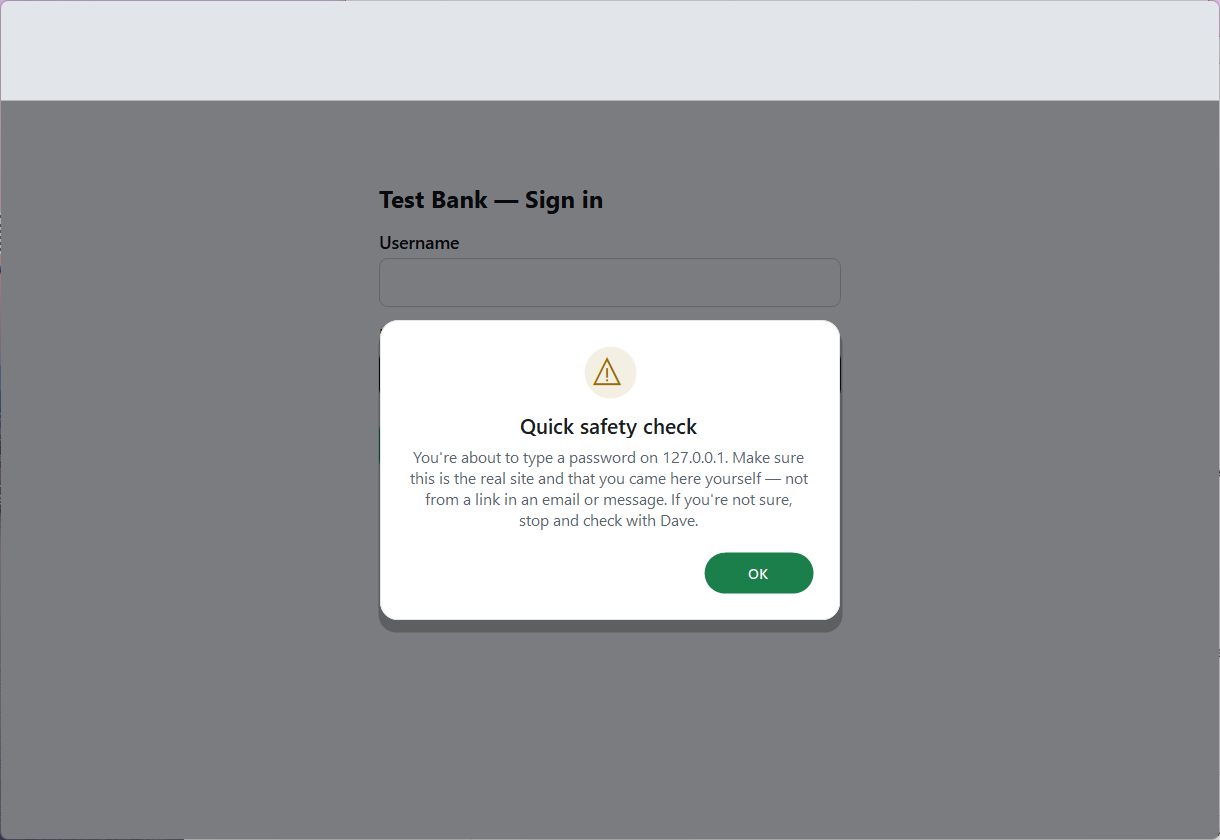
Before your loved one types a password on an unfamiliar site, Searchly quietly steps in with a friendly reminder — the single most effective moment to stop a scam.
- "Make sure this is the real site and that you came here yourself — not from a link in an email."
- Names a trusted family member to check with if unsure.
- Appears only on unfamiliar sites, so everyday browsing stays smooth.
- Turns the riskiest moment online into a calm pause.
Password safety with a two-tier vault
Most password managers treat every login the same. Searchly knows the difference between your streaming account and your bank.
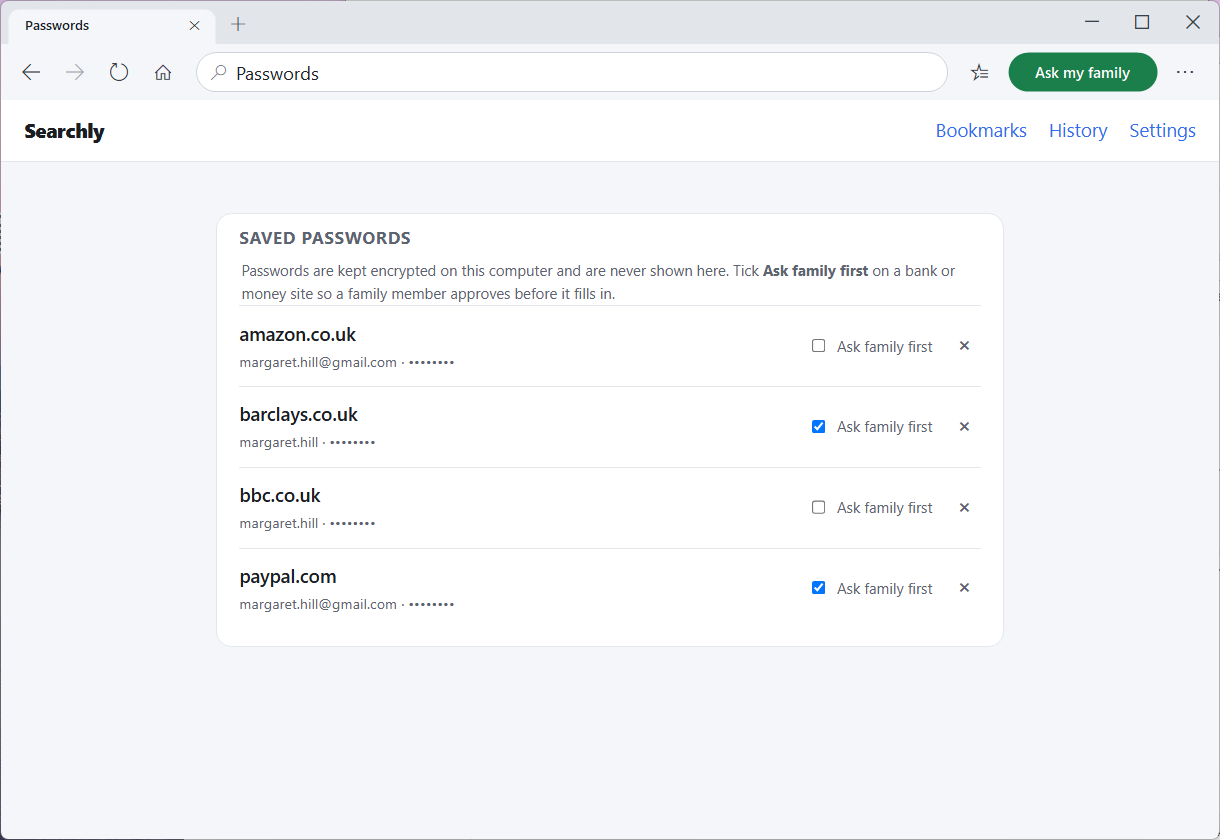
- Logins are encrypted on the computer (Windows DPAPI) and never displayed — not even to the user.
- Everyday logins (news, shopping, streaming) autofill freely and effortlessly.
- Banks and money sites are automatically flagged "Ask family first."
- Before a flagged login fills, a family member approves it with one tap — or a private family PIN unlocks it.
- The family member approves the action and never sees the password itself.
- Any saved login can be re-classified by the user at any time.
Download & settings protection
Many scams end with 'just download this' or 'let me change one setting.' Searchly closes those doors.
- Blocks risky downloads — programs, installers, and files disguised as documents like invoice.pdf.exe.
- "Documents-only" download mode is on by default.
- Blocks downloads from known scam sites outright.
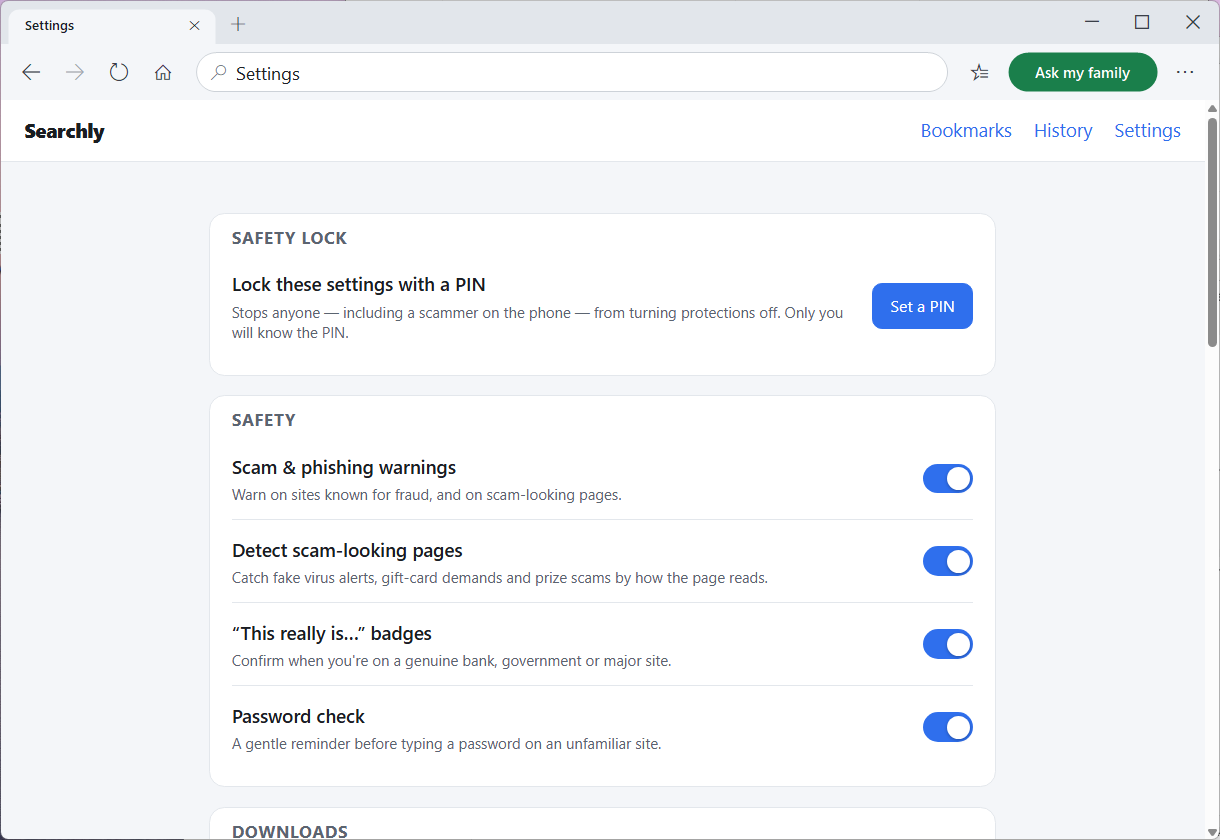
- A caregiver PIN locks the safety settings, so a scammer on the phone can't talk anyone into switching protections off.
Block other web browsers
The safest browser in the world doesn't help if a scammer simply says "open Edge instead." So Searchly can stop every other browser from opening on the account — keeping your loved one inside the safety net, on purpose.
- Stops Edge, Chrome, Firefox and any other browser from opening on this Windows account.
- Removes the easiest way for a scammer to bypass Searchly — "just use a different browser."
- Protected by the caregiver PIN, so it can't be turned off by someone on the phone.
- Completely optional and reversible — you can switch it off yourself at any time.
A calm, familiar design
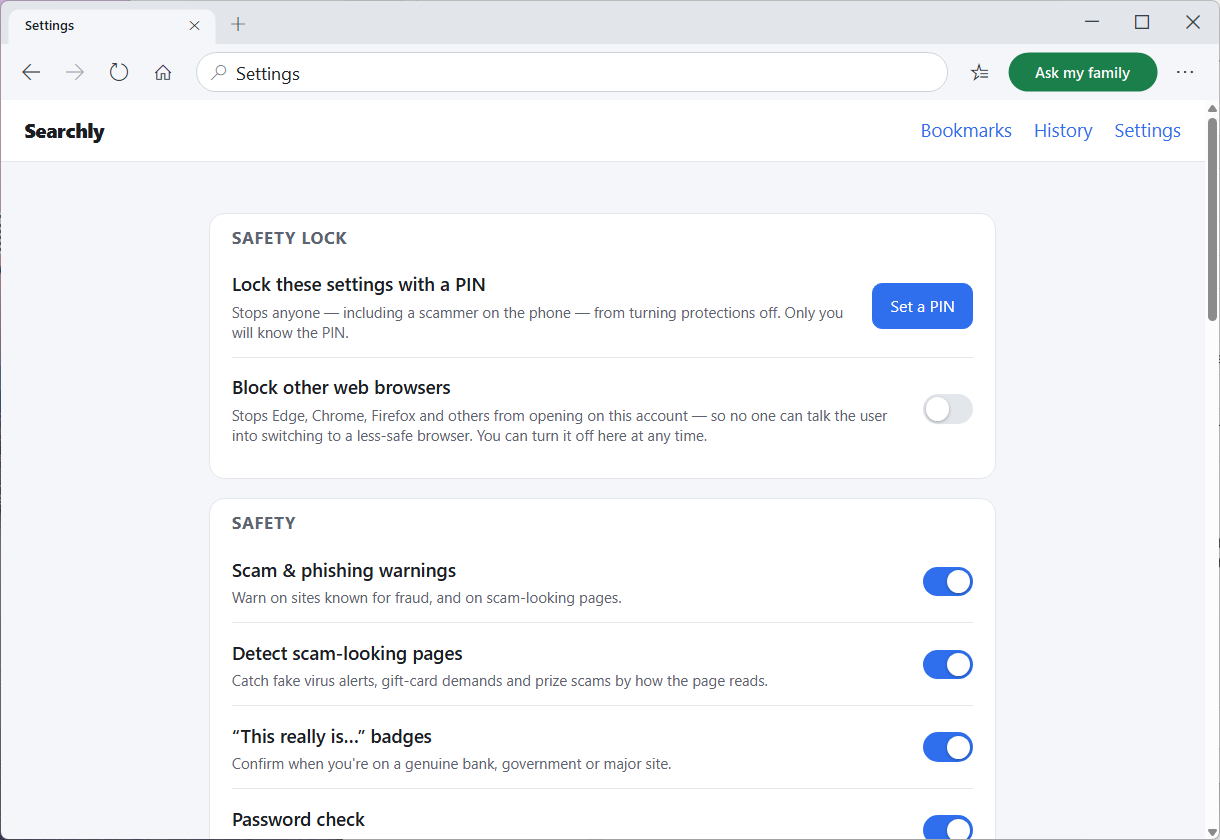
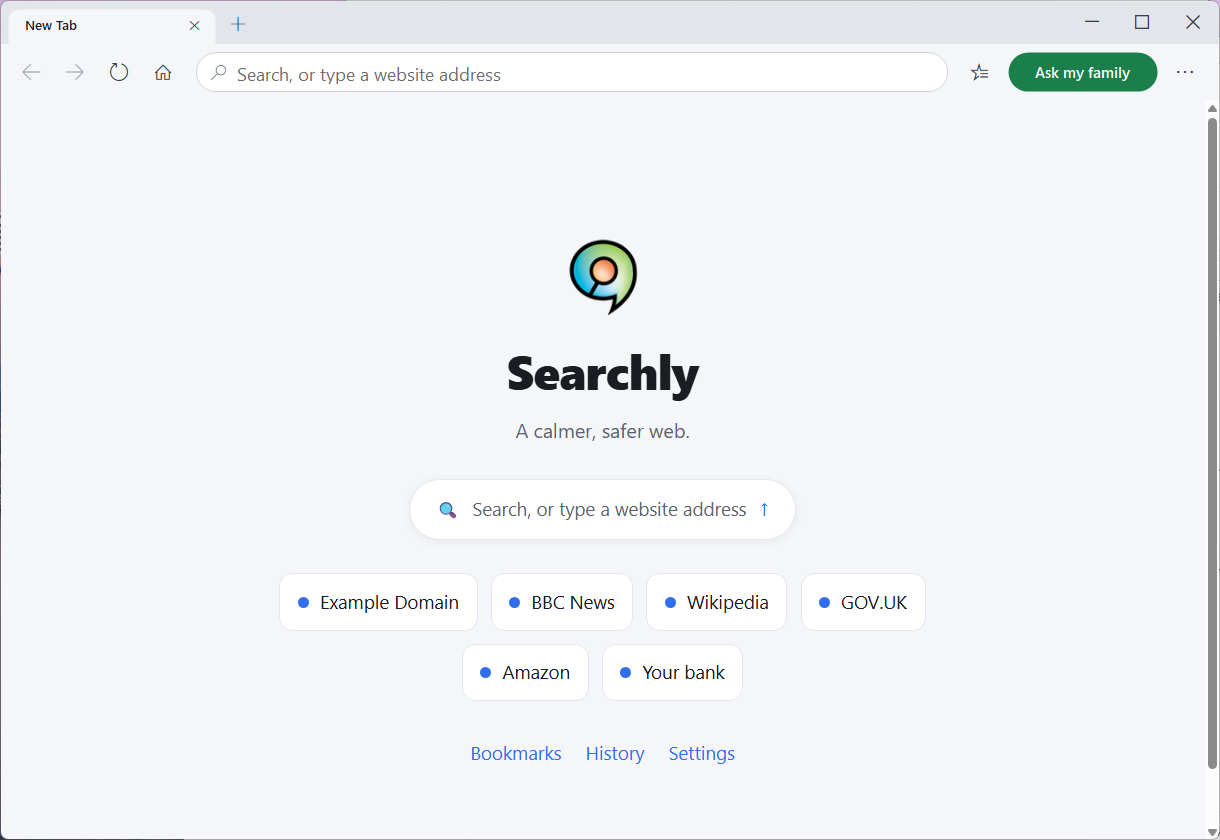
Everything is a little bigger, a little quieter, and a lot friendlier — without hiding the real, capable browser underneath.
- A clean start page with a big search box and large, clearly labelled shortcuts.
- Gentle default zoom, with one-tap make-text-bigger or smaller.
- A single, uncluttered toolbar — no jargon, no walls of settings.
- Reader mode for clean, large, distraction-free articles.
- Familiar favourites, history and downloads in the same calm style.
Privacy & housekeeping
Safety and privacy go hand in hand. Searchly protects your loved one from scams and from being tracked.
- Private search by DuckDuckGo is the default — no tracking profile.
- No account is required to use the browser; passwords stay on the device.
- Auto-updating — quietly keeps itself current, installing on next close with no admin prompts.
- Safety rules update in the background, so protections improve without anyone doing a thing.
Safety and privacy go hand in hand. Searchly protects your loved one from scams and from being tracked.
Ready to give someone a calmer, safer web?
Free for Windows 10 and 11. Set it up in a few minutes.